


 How to use the WIBC Website
This is an advisory article on the subject and it's your choice how you work.
We recommend using a full size PC monitor screen or at least a 10 inch screen tablet. 995 width x 670 (Landscape or Portrait) is the minimum resolution for ease of use. Smaller screens will make it very difficult to navigate the large content in course study lessons. If your devices web browser uses scaling, you may getaway with an 800-750px width.
Basic site use (Non-Registered Visitors)
All articles are free to read, use and copy as you wish. Article downloads in PDF format are freely offered, in the Download section.
There is always a top-of-page link at the bottom right of the screen that will get you to the top of page, when reading long articles or course content.
By using the WIBC Academy website you agree to the terms and conditions of use.
For All Registered Users
When you sign up for a course and Admin have set you up in the study plan, you will see a new Students menu left side with all the resources and site navigation needed to study your chosen course. This menu should stay on screen when scrolling, for easy access.
Students will be able to contact the Tutor running the course from within the course using provided link in the Briefing section of the course, or on the course forum, or by using the internal messaging system
Common practice would be to message your Tutor in the Forum by selecting your course title and posting there.
NOTE: If you cant find you're course in the 'My Course Study' section, use the 'All Classes' tool on the left, in Students menu, to find and add it.
If you Get Blocked by our security
If you get blocked in the future by the college site from accidental usage like too many incorrect passwords, record the IP address shown in the blocked message and inform us by mail, and we will unblock your account so you can get back on the college site. Sometimes restarting your internet router changes your IP address and you can log in anyway.
If you see a [TimeGate] error message, try pressing the log-in button 2 seconds after entering details, as we have a system that times logins, to track and stop cyber crime.
 To send internal message to a tutor, or any other member use the messages menu option. Behave when using this system as it is checked for bad words every 10 minutes.
Student menu options
The student menu will only show when you are logged-in to your study account. The following will explain each menu option.
If you get stuck at any time just email us with you're issue and we will get you back on the right road.
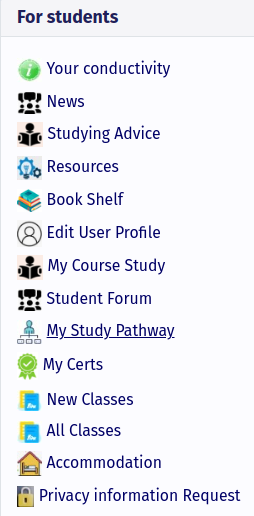
Your conductivity
Rules and advice on how to behave in Forums and with your account profile data.
News
Read about the latest events and news.
Studying Advice
Lots of good tips on how to learn and be a productive student on your study path.
Resources
Just that! Tools and apps to download and install, pdf's and more. All to help in the study process.
Book Shelf
A library of books that you can read or buy. Some books are referenced in course work, others are advised reading, and many are just for reading at will.
Edit User Profile
All you're user data can be changed using this menu option.
My Course Study
This menu choice will take you to the courses you are currently studying. This will be the one you use the most as it takes you to your course index with all the lessons listed out. It shows completed lessons and exams. You can go back into any lesson at any time to revise or take notes for other lessons. You can also get to this from you're DASHBOARD.
Student Forum
The forums for students to discuss things on a course subject. You can only take part in forum subjects that are setup for your chosen course/s. You can also contact and talk with your assigned tutor.
My Study Pathway
This option shows any pathways you may have chosen to study, and it will list all the classes and courses, that are part of your study plan which you can access from this point.
My Certs
If you are doing well and passed the online completion exams you can view and download any earned certificates from here in pdf / picture format. The exams are not hard, they are more about making sure the knowledge is retained, and they are not recognised qualifications, so no stress necessary. We keep all certs until you say otherwise, so you can prove you sat a course with us, or attended seminars.
All Classes
Selecting this item will bring up a search system you can use to find all courses or study paths and even single lessons. This can also be used to find a course you signed up for, and add it to the 'My Course Study' list, if it's missing.
Accommodation
This is just information on the accommodation we have at the college, if you have a 4-6 day seminar ad-on for one of the full courses you can view one of the cabins. Booking is dealt with by phone. All females are together separate from the men.
Privacy information request
This is found in your User Profile. You can use this section to request all the data that the college has concerning you. It wont be much, but this allows us to comply with GDPR regulations, and give you the chance to have a copy of the data. You can also ask us not to hold any data after courses are completed, but this will cause problems when or if you need to ask for a new certificate, or prove college attendance. We keep any data related to accounts such as payee details because by law we must keep six years of accounting records.
Your user Account: (Edit user profile)
You can change your password and email, and also setup pass key log-in or activate 2 stage verification known as '2FA'. Be careful using this and make sure your email is correct, or you will in effect lock yourself out and we will have to reset your account.
There are also options to: Request user data, Delete Account, Agree to user data being kept. Our Study system can not function properly without the most basic user data, such as passwords and user names, and account Emails. These basic data items are used to unequally identify your user account so the correct resources can be assigned, and progress tracked for tutors to work with.
If you have any problems with using the website just email us at and we will sort things out.
 DASHBOARD
This is where you land each time you log-in. The Dashboard is the hub for all your activities in one place, and is self explanatory and easy to follow.
From the dashboard you can access courses, see online and guest figures, send a message, request personal data, view seminar dates, edit profile, close user account, see new articles and more.
 Using the Forum
When you enter the forum the first thing to do is select the 'Index' menu option at the top, then click the Big button near the top and select 'Board Categories'. This will show all the categories and forums available to you.
Selecting the 'Forum' link in the bread crumbs menu near top, will show the 'Recent Topics'. The Bread Crumbs menu will follow you around the forum allowing you to easily back-track to previous sections of the forum.
If you want to post a new topic on a forum, just select 'New topic' then choose your Category and fill in the 'Subject' and 'Message' sections. Then scroll down and select 'Submit' button.
There are lots of options in the user menu drop down  button but they are easy to pickup, but don't hesitate to ask if you get stuck or confused. ''There is no such thing as dumb question''.
To change your Forum Avatar, select 'Profile' from the top menu, then select the Edit button right-side.